
The default distribution is configured with some options not compatible with all hardware. So you may get problems especially with displays/screens.
The solutions often need you to :
- remove the sdcard from the raspberry pi
- plug it into ANOTHER computer, probaly your daily PC, maybe with an adapter
- edit the /boot/config.txt file on the FAT32 partition
- save your modifications
- cleany eject the sdcard from your computer
- put the sdcard back in the raspberry pi and boot it
Black screen, empty screen
If the raspberry pi is booting (flashing lights at the beginning) but the display stays empty or with a solid color, you may have a device that is not happy with the default HMDI mode/resolution. You may try the following, it worked for many users with old, smaller, or larger displays :
Replace
hdmi_mode=18
with
hdmi_mode=16
Official Raspberry Pi 7" touchscreen
Unfortunately, the resolution of this display is only 800x480, and so a lot of the Aeolus user interface overflows off of the screen. This forum post https://forums.raspberrypi.com/viewtopic.php?t=195726 described how modifying /boot/config.txt can increase the size of the frame buffer and could automatically scale the screen size.
Adding the following lines to /boot/config.txt
framebuffer_width=1200
framebuffer_height=720
and now the Aeolus UI fits on the official Raspberry PI 7" display
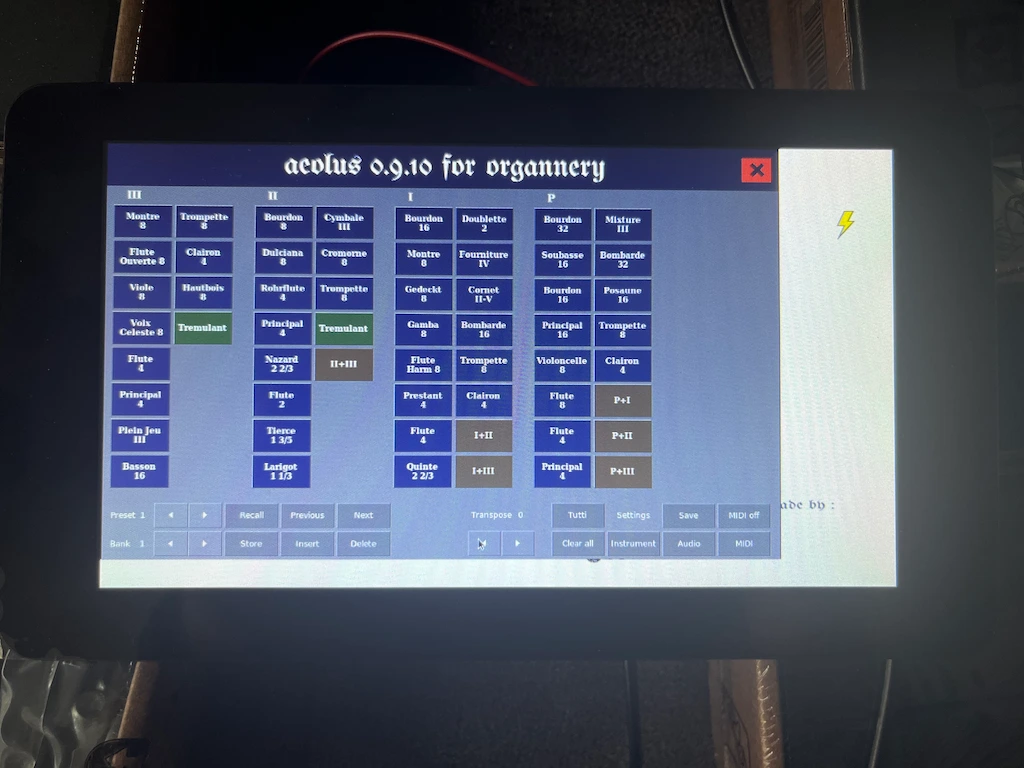
You may adapt the width an height for your needs.